

• Toggle Point Symbols
Bridges Home


Clicker 6


Webinars -- What's New in Clicker 6?


Clicker 6 builds on the acclaimed support features of its predecessors.

Clicker 6 combines customizable student support tools that empower children to work independently, with intuitive activity wizards that make it easier than ever before for teachers to create and edit Clicker activities.


More student independence!
Quick start word processor
The Quick Start activity screen enables children to start working right away.
Webcam support
Built-in webcam support enables students to take photographs that instantly appear in their Clicker documents.
Elementary word predictor
This intelligent predictor suggests words that fit the context of the students’ writing, helping students with their spelling and grammar, and encouraging them to use more adventurous vocabulary.
Favorites list
Children save favorite Clicker activities to their favorites list for easy future access.
Click & Edit books
Clicker’s child-friendly Click & Edit activities enable students to independently create their very own talking books and presentations, on any topic!
Enhanced picture support
The enhanced Clicker 6 library contains over 2500 engaging curriculum pictures, which are not only available for use in documents, but also in Clicker Sets, the predictor, and the spellchecker.
Built-in painting tools
The popular painting program, Clicker Paint, is now fully integrated into Clicker - a great opportunity for students to creatively express their thoughts and ideas.
Mouse Dwell
As well as being fully switch accessible, Clicker 6 allows selection by Mouse Dwell, vastly improving access for those using joysticks, trackballs, or eye-control devices.


Less teacher time!
Activity creation tools
A completely new way of creating Clicker activities. Simply add words or pictures and the wizards instantly transform them into an activity. There are wizards for sentence building, word banks, writing books, matching, and speaking and listening activities.
New Edit Mode
Editing activities made simple - click on a cell and the toolbar instantly changes to display only the tools relevant to the item being edited, with no need to search through menu options.


Instant access to LearningGrids
No need to log in to LearningGrids – access the free resources instantly from within Clicker!


System Requirements:

Windows:

XP, Vista, Windows 7

Mac:
Mac OS X 10.5, 10.6, 10.7

Networks
When you purchase Clicker 6, a network installer is included on your CD, together with full deployment instructions.

Word Processor

Boost Writing Independence with Clicker's Word Processor 

Most word processors are designed for literate adults. Clicker 6 is designed for children who are learning to read and write. It will grow with your students as they develop their skills, making it the ideal word processor for the classroom. 

Students type into Clicker from the keyboard, or use Clicker Grids to enter words and pictures, so you really can use it across your age and ability range. 


Amazing quality speech 
Clicker helps learners find and correct errors and grow in independence and confidence by providing automatic speech feedback as students write. Each sentence is automatically read out as it is completed, with every word clearly highlighted as it is spoken, enabling learners to follow the text and review what they have written. Research shows that this active engagement with text encourages students to find and correct errors for themselves. 


Intelligent word prediction 


Clicker’s intelligent word predictor suggests words that fit the context of the student’s writing, encouraging them to use more adventurous vocabulary. Children are able to create flowing pieces of text with accurate spelling and grammatically correct sentences. 


Write with pictures 
The enhanced Crick Picture Library 3 contains over 2500 curriculum pictures, which can be used in documents, Clicker Sets, the predictor and the talking spellchecker. The library makes it easy for students to illustrate their own books or documents, and for teachers to provide graphical support for learners who need additional help.
 
Alternatively, use other picture libraries such as our symbol sets or your own bank of photos. 


Easy-to-use tools 
Clicker's tools use the standard icons that students need to become familiar with. By default, they are displayed at a larger size, making them ideal for early writers. The toolbar is fully customizable, so you can adjust the size of the tools and display just the ones you want your students to use. 


Speech in word processor 
By default, each sentence is automatically read as it is completed. This encourages students to punctuate their work, and ensure that they review each sentence before starting the next one. This helps students take responsibility for their writing, and make corrections as they write. 

For those needing more support, each word or letter can be read as it is entered, giving students instant feedback. Any combination of the options can be used to give the optimum settings for individual learners. 

In addition, students can hear any section of their writing by using the speech tool in the toolbar. 


Clear highlighting 
Words are clearly highlighted as they are spoken, enabling students to follow the words in their Clicker document as they are read. 


Speech in Clicker Grids 
Students using Clicker Grids to enter whole words may need to check the word they are about to use before they write. A simple right-click (Mac: Ctrl-click) reads the word out to them. This allows students to find the right words for themselves, and encourages them to use more adventurous vocabulary, boosting their confidence as they develop their ability to write independently. 


Try voice 
Hear the Heather voice Hear the Ryan voice Ensure the sound on your computer is working and then click a button to hear for yourself.

Word Prediction

Develop Vocabulary and Spelling with Word Prediction

Clicker’s intelligent word predictor suggests words that fit the context of the student’s writing, encouraging them to use more adventurous vocabulary. Children are able to create flowing pieces of text with accurate spelling and grammatically correct sentences.


Predicts in context as you type
The predictor is fully integrated, so that it always knows your context. A list of possible next words is offered as you complete the word you are typing. If the word you want is not in the list, just start typing – your word is likely to appear after just two or three letters!

For struggling spellers, our SoundsLike technology detects what the word being typed sounds like. It then predicts words that begin with that sound. For example if you type 'wen', Clicker predicts 'when' and 'Wednesday', as well as 'went'!


Access with mouse or keyboard
To enter a predicted word into your document, either click the word with the mouse or use a number key on the keyboard (you can choose whether you want to use the numeric keypad or the main number keys).

Want to hear the word before entering it? Just right-click (Mac: Ctrl-click) with the mouse or hold Ctrl while you press the number key.


Predict anywhere in the document
Integrated word prediction also means that you can go back anywhere in your text to look for alternatives. For example, imagine you have entered this sentence:

I walking to the park.

You listen to the sentence and realize that you have an incorrect word ending in 'walking'. Just move your text cursor between the 'k' and the 'i' and the predictor will offer all the possible word endings. Click on 'walked' and you're done!


Personalise for your students
You can be sure your students are getting predicted words that are right for them by setting the predictor to any one of four levels. You can even create your own customized levels. All the settings are automatically stored with the user’s profile. 

Clicker Sets

Build Reading and Writing Confidence with Clicker Sets

Clicker grids, books and pages give students point-and-click access to whole words, phrases and pictures, helping them to construct their work more independently. Create a set of grids to help students write a more substantial piece of work in manageable steps.


Sentence building grids
Sentence building grids typically contain all the words required to build a sentence. Some cells may also contain pictures to help students identify words, and all cells have speech on right-click so the user can hear the word before they write it.

Sentence grids are usually linked, so when a sentence is completed, the user clicks the forward arrow to move to the next grid in the sequence to write the next sentence.

As they move through the series of grids, the text in their Clicker Document grows, giving students the satisfaction of creating a significant piece of writing.

The words in the grid can be color coded to define parts of speech. In addition you can offer a visual or aural model for the student to copy, or use a ‘forced order’ template to encourage left to right directionality. 


Word bank grids
Some students who can spell out most words using the keyboard may still need help with the more difficult words, or they may need encouragement to broaden their vocabulary. Clicker word bank grids provide instant access to any number of words.

Word bank grids are tabbed to provide access alphabetically or through topic areas. All words can be previewed with a right-click (Mac: Ctrl-click), which reads the word out. 


Writing frames
Many students find it difficult to structure their writing, especially when writing in a genre that is new to them, e.g. a set of instructions or writing up an experiment. Writing frames provide scaffolding to help students achieve well-structured writing.

Clicker Grids are the perfect vehicle for writing frames. They provide sentence or paragraph starters, subject-specific vocabulary, and other supporting phrases.


Matching activities
Matching activities are a great way of developing basic problem-solving and language acquisition skills. They are particularly useful for supporting emergent readers and children learning English as an additional language.

A range of matching activities can be created, incorporating pictures, words and sounds, in whatever combination, to progress students’ key skills at a manageable pace. 

Clicker Activities

Create Your Own Personalized Activities Quickly and Easily

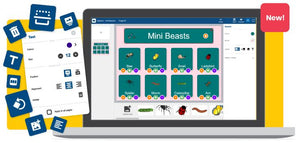
The Clicker 6 wizards are a completely new way of creating Clicker activities. Simply add in your content, and the wizards instantly transform them into a Clicker activity. There are also lots of Clicker templates too!


Quick Grid Wizards

The Quick Grid Wizards enable you to create supportive Clicker Grids in a matter of seconds! Grids are used to enter text or pictures into Clicker Writer, either in place of, or in addition to, the computer keyboard.


Sentence Building
Create sentence building grids from any number of sentences:


Word Banks
Create an A-Z word bank from any piece of text. 


Picture Banks
Create a picture bank using your choice of pictures and / or photographs.


Quick Page Wizards

The Quick Page Wizards make it easy to create full page Clicker activities. Include pictures, words, sounds or even your own photographs!

Writing Book
Create a writing book template with word and picture pop-ups.

Listen & Say
Create a listen and record activity with words and pictures.

Story Telling
Create a step-by-step story telling activity with pictures. 

Talk About
Create a picture-based activity to stimulate talking about your chosen subject.

Matching
Create a matching activity with pictures, words and sounds.   


Talking books - for reading
Clicker talking books are an important ingredient in the range of reading materials in your classroom. Clicker talking books give you the following benefits:
  • Accessibility – just a forward and back button to turn the pages and a speech button to hear the text.
  • Flexibility – students are able to read the books independently, but they also make great centerpieces for your whiteboard lessons.
  • Speech support - they can use either digitized speech or a real sound recording.
  • Connected activities - books can be combined with supporting comprehension and writing activities (e.g. the Planet Wobble series). 
Talking books - for writing
Making Clicker talking books is not only easy for the teacher – you can give your students the opportunity to create talking books too! Start younger or struggling students with one of our easy-to-use book templates and switch on Click & Edit –it’s simple for children to enter their own text, images, drawings and even voice recordings, all with the support of Clicker. 

Or...let us do all the work for you!
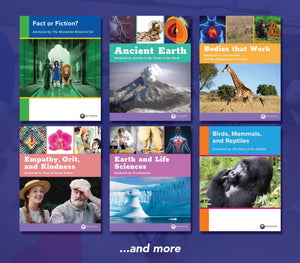
When you buy Clicker, you also get free access to ready-made resources on our LearningGrids  website. The resources cover a wide range of curriculum topics, and more are added every 2 weeks by our Curriculum team. They are also incredibly easy to edit, enabling you to tailor activities to your exact requirements.We have also created an acclaimed range of premium Clicker content - our ‘Powered by Clicker’  resources, which harness the power of Clicker to further support students’ learning in specific curriculum areas.  

Creativity

Encourage Students to Work Creatively

Adding a creative dimension to writing activities really helps children to actively engage with the task at hand. Clicker 6 encourages students to express themselves in a variety of ways.      
                                                                                                                                                                   

Clicker & Edit books
It’s easy for students to put together resources that demonstrate their learning. Clicker’s child-friendly Click & Edit activities enable your students to independently create their very own talking books and presentations, on any topic!


Built-in painting tools
Our popular painting program, Clicker Paint, is now fully integrated into Clicker!

Drawing a picture is a perfect starting point to get children writing, and the ability to talk about their picture offers a natural lead into the writing process. Add in sentence building grids and voice recording, and you have a unique environment for writers to express themselves.


Webcam support
It’s so motivating for students to use their own photographs in their work. With Clicker’s new built-in webcam support, students are able to take photographs that instantly appear in their Clicker document.

 
Home
Bridges to Learning Conference
Events & Webinars
Assistive Technology
Alternative Access (switches, Keyboards and more)
Communication Aids
Display Materials
Electronic Aids for Daily living
Life Skills
Literacy
Numeracy
Science
Skill Building
Social Studies
Symbols
Tools For Living and Play
Services, Loans, & Tech Support
Web Accessibility
Assistive Technology Services
Video Resources
Bridges Learning
Symbolizing
ESL/ELD
Early Childhood
Special Education Curricula & Resources
YOUDLE BOXES
Ordering
Product Videos and Webinars
Tech Support
About Bridges
Sales & Special Offers
Top


Print this page